In case you’re not aware, Tumblr has recently announced that on the seventeenth of December they’ll start purging all porn and porn-adjacent content on Tumblr. Why does that matter to LWU, you ask? Well, they’re using their bots to identify it, and we’ve all seen how well THAT works. One of my Wander posts even got flagged as sensitive for no apparent reason. What I want to do is reassure you all that I’ve taken steps to back up all of the content on LWU to my hard drive using a tool I was recommended a couple weeks ago. I’m going to continue to do so on a regular basis just in case, so there’s very little chance that my stuff will be lost.
I’m using this one! It condensed my entire blog as of November 20th into one 4.36 gigabyte folder.
Any notes on how to use it? I can’t figure it out.
Okay, so here’s how to do this.
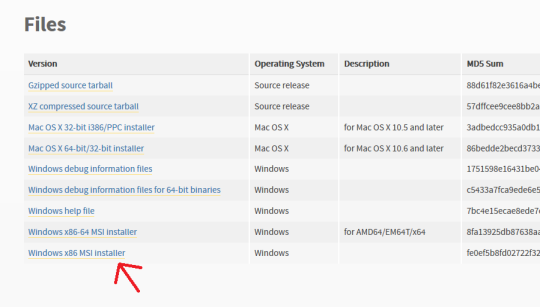
First off, go here and make sure you have Python installed. For Windows it should be the very bottom link, the x86 MSI Installer. You don’t have to do anything but install it.
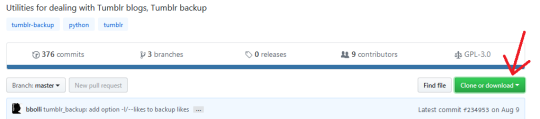
Second, go here, and click “Clone or Download” (the green button on the right). Select “Download ZIP”.
Make sure you have WinRAR or 7zip or something installed that lets you extract zip files.
Next, make a folder on your desktop. I named mine “Tumblr Backup”, and in the following instructions I’m going to assume that’s what you’ve named yours as well; replace “Tumblr Backup” with whatever you name yours if it isn’t.
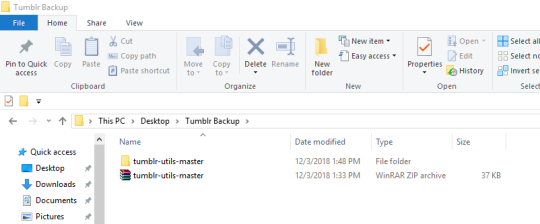
Drop the zip file you downloaded into Tumblr Backup. Go in and extract it; this should create a folder called “tumblr-utils-master“.
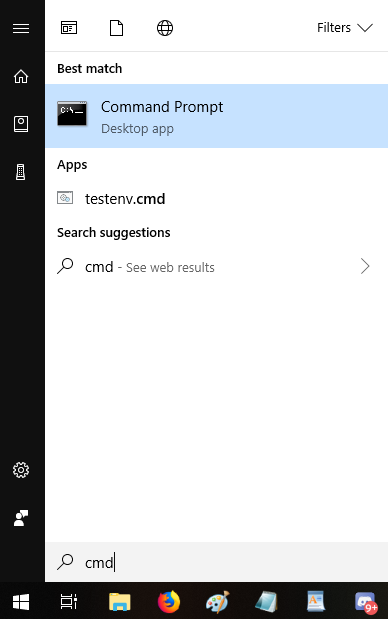
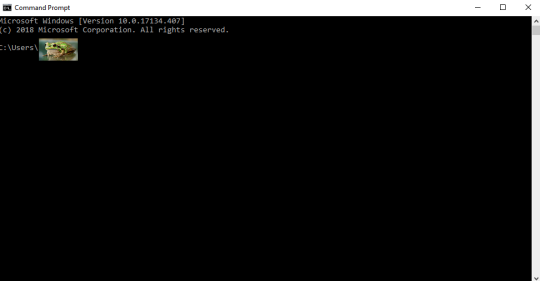
Open your Command Prompt. If you don’t know how to find that, click your start menu button and type “CMD”, which should give you this:
That should open this:
That frog over there is blotting out my profile name on my computer. Whatever your profile name is when you sign in (e.g. “Max” or “Snugglebuns” or “froglord69”) is going to be in that spot on the address path. If it instead says something about Windows and System 32, that’s okay, what I’m gonna tell you to do will go to the right place either way.
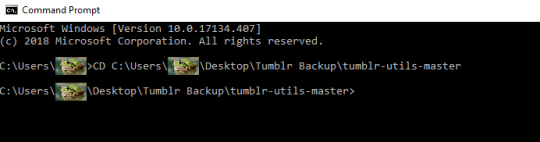
Next, input this command–keeping in mind that the parts in bold should be changed based on your profile name and what you named the folder on your desktop:
CD C:Usersfroglord69DesktopTumblr Backuptumblr-utils-master
There! Now you’re in the right folder! Next, enter this command, replacing the bolded bit with your own blog name:
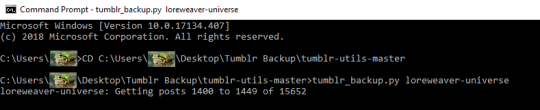
tumblr_backup.py yourblogname
You should see this:
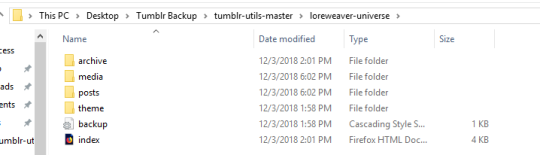
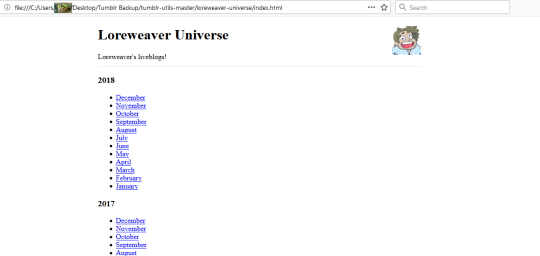
Then just…let it run! It took less than five minutes for my computer, though it will vary by processor and connection. Once it’s done, you’ll have something like this:
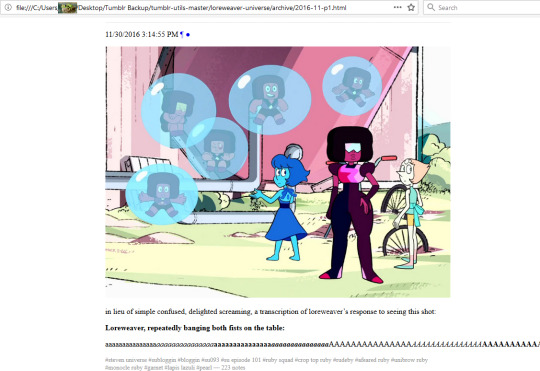
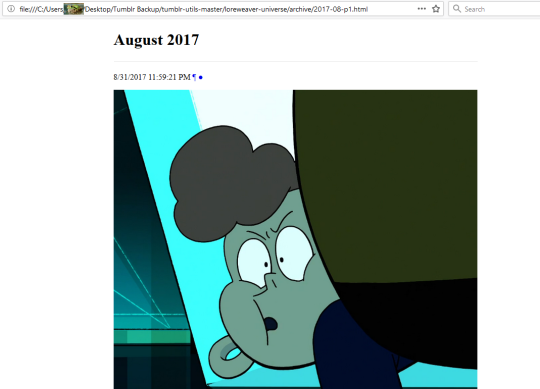
That “index” opens in an internet browser. It’s basically a webpage stored directly on your computer. Some pics of mine:
So…not pretty, but it’ll save the content of your posts. Hope this helps!
Spread this so as many people as possible can see it
Mac users:
Create a folder somewhere convenient and name it something like ‘Tumblr Backup.’
Download the script as described above. Save it to the folder you just created. Double click it, and it extracts in place.
open a terminal.app window. Terminal.app is located in your /Applications/Utilities folder. Usually, just typing command-space to bring up the spotlight window and then typing in ‘term’ and hitting return does the trick.
If you are not accustomed to UNIX command prompts, do not be scared. You got this.
At the ‘$’prompt, type in ‘cd’ and then space, and then drag and drop the decompressed tumblr-utils-master folder onto the terminal window. The path to that window should appear. Hit return.
Boom. You’ve switched to that folder. Type ‘ls’ to make sure. Should look like a list of the folder’s contents.
Type ‘./tumblr_backup.py [yourblogname]’ and hit return.
Boom. Your blog starts downloading. Go drink coffee, enjoy some porn, hang out with your dog, cat, other pet, or lover/s who may also be your pet/s, and let the script run. Depending on your connection speed and just how much of a pervert you are, this could take a while.
Mac instructions for you weirdo Mac users!
Oh thank gods, I needed those mac instructions. THANK YOU.
THIS WORKS!!! (Windows, at least. I haven’t tried Mac)


 Captain Neverever